
How to Fix Common Office Printer Problems
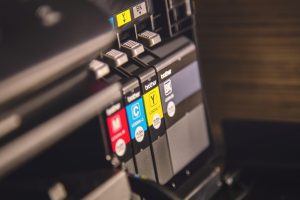
Printers are essential office tools, but they can also be a major source of frustration when they stop working as expected. Many common commercial business printer problems can be resolved quickly without professional help, saving businesses time and money. In this guide, we’ll explore some of the most frequent office printer issues and provide practical troubleshooting steps to fix them before calling a technician.
Creative Office Solutions is the unrivaled expert in copier and printer repair, sales, and service across metro Atlanta and Marietta, so we have seen it all when it comes to common office printer problems and how to fix them.
Paper Jams
Paper jams are among the most common printer issues in office environments. They can occur due to improper paper loading, dust buildup, or using the wrong type of paper.
How to Fix It:
- Turn off the printer before attempting to remove the jammed paper to avoid damaging internal components.
- Gently remove the jammed paper by pulling it in the direction of the paper path—never force it.
- Check for small paper fragments that may be stuck inside the rollers.
- Ensure the paper tray is properly aligned and that the paper isn’t wrinkled or overloaded.
- Use the correct type of paper recommended for your printer.
- Regularly clean the paper feed rollers to remove dust and debris that could cause future jams.
Slow Printing Speed
If your office printer is taking too long to print, it can slow down workflow and reduce productivity.
How to Fix It:
- Check the print quality settings. Higher quality settings take longer to print; switching to “Draft” mode can speed up printing.
- Use a wired connection instead of Wi-Fi. A slow network can cause delays in printing jobs.
- Reduce the number of images in the document. High-resolution images can slow down print speed.
- Update the printer drivers and firmware. Outdated software can cause performance issues.
- Upgrade printer memory if your printer allows it, especially if you frequently print large files.
Faded or Poor Print Quality
Documents print with streaks, faded areas, or blurry text.
How to Fix It:
- Check the ink or toner levels and replace cartridges if they are running low.
- Clean the printheads. Inkjet printers may have clogged printheads that need cleaning.
- Run the printer’s built-in maintenance tools, such as printhead cleaning or alignment.
- Use high-quality paper and ink/toner recommended by the manufacturer.
- Ensure toner cartridges are properly seated in laser printers to avoid uneven printing.
Printer Not Recognized by Computer
The printer does not appear in the list of available devices or won’t respond to print commands.
How to Fix It:
- Restart both the printer and computer to refresh the connection.
- Check all physical connections (USB cable, power cord, and network cable if applicable).
- Ensure the printer is connected to the correct Wi-Fi network.
- Reinstall or update printer drivers. Corrupt or outdated drivers can cause communication issues.
- Run the printer’s built-in troubleshooting tool, often available via the manufacturer’s software.
Ghosting or Double-printing
A faint duplicate image appears on the printed page, making the document look unprofessional.
How to Fix It:
- Check the fuser unit in a laser printer. If it’s near the end of its life, it may need to be replaced.
- Ensure you’re using the correct type of paper. Some papers retain too much toner, causing ghosting.
- Lower the humidity in the office. Excess moisture can cause print quality issues.
- Adjust print density settings in the printer menu to see if it improves the print quality.
Printer Won’t Print at All
The printer appears to be on and functional, but it won’t print anything.
How to Fix It:
- Check for error messages on the printer display and follow any instructions.
- Make sure the correct printer is set as default on your computer.
- Clear the print queue. A stuck print job can prevent new documents from printing.
- Ensure the printer has enough paper, ink, or toner.
- Restart the printer to clear minor software glitches.
- Verify network connectivity if using a wireless printer.
Printing Random Characters or Gibberish
The printer outputs pages of nonsense characters instead of the intended document.
How to Fix It:
- Cancel all print jobs and restart the printer.
- Check for driver corruption and reinstall printer drivers.
- Use the correct printer language settings, as mismatches can cause encoding errors.
- Ensure you are not printing from a corrupt file. Try printing a different document.
Toner Smudging or Not Sticking to Paper
The printed document has smudged text or toner that rubs off easily.
How to Fix It:
- Check the fuser unit. If the toner isn’t bonding to the paper, the fuser may be faulty or not heating properly.
- Ensure the correct paper type is selected in the print settings.
- Replace low-quality or damp paper.
- Allow freshly printed documents to dry completely before handling.
Wi-Fi Connectivity Issues
Wireless printers frequently disconnect or fail to connect to the network.
How to Fix It:
- Restart the router and printer.
- Move the printer closer to the router to improve the Wi-Fi signal strength.
- Ensure the printer is connected to the correct Wi-Fi network.
- Assign a static IP address to prevent the printer from losing its network connection.
- Update firmware for both the printer and router.
High Printing Costs
Your office is spending too much on ink, toner, and maintenance.
How to Fix It:
- Use toner-saving mode or draft quality settings for non-essential documents.
- Switch to high-yield cartridges for better cost-per-page efficiency.
- Implement managed print services to optimize usage and reduce waste.
- Encourage duplex printing to save paper.
- Monitor printing habits to identify areas for cost savings.
While office printer problems can be frustrating, many can be resolved with simple troubleshooting steps. By following these solutions to common office printer problems, you can avoid unnecessary downtime and costly service calls. However, if your printer continues to malfunction after trying these fixes, it may be time to call a professional technician for further assistance. Regular maintenance and proper usage can also prevent many of these issues from occurring in the first place, ensuring that your office’s printing operations run smoothly.
If your business is located in Georgia and needs reliable printer or copier solutions, Creative Office Solutions is here to help. Whether you need expert repairs, new equipment, or managed print services, we provide tailored office solutions to keep your business running efficiently. Contact us today for a free consultation and let us handle all your office printing needs.

“Creative Office Solutions came to our office to install a new copier machine. Excellent experience! Professional, communicative, and ensured they met our expectations.”
 Copiers
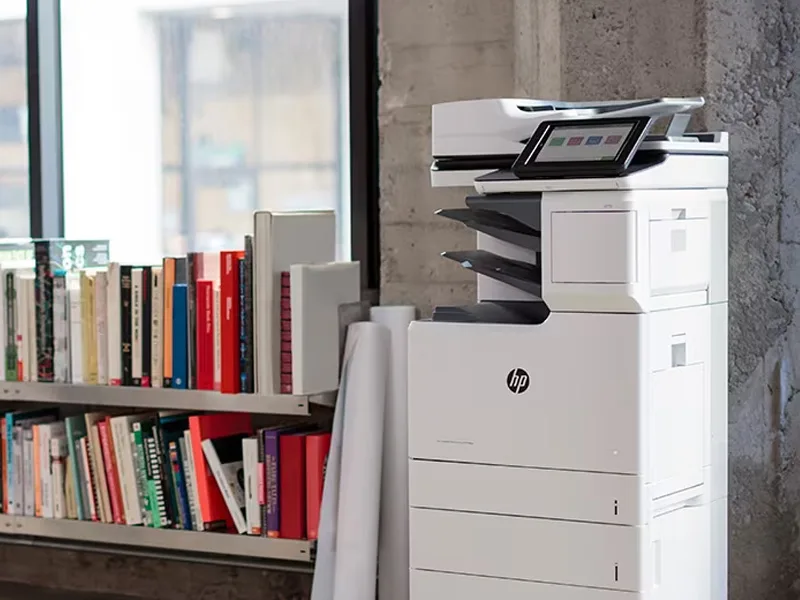
Sharp is the #1 brand for copiers in the metro Atlanta area. Call for a quote!
Learn More
Copiers
Sharp is the #1 brand for copiers in the metro Atlanta area. Call for a quote!
Learn More
 Printers
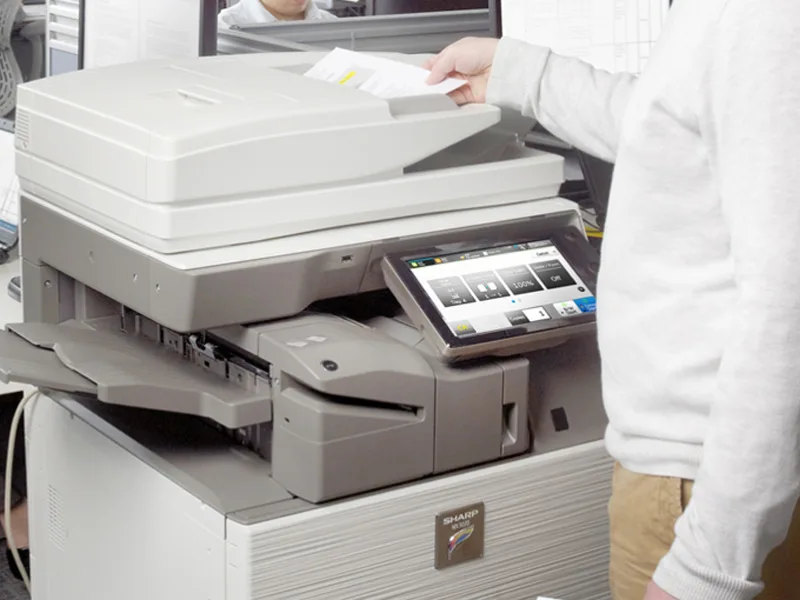
We are partnered with HP to bring you the world’s best printers at a discount.
Learn More
Printers
We are partnered with HP to bring you the world’s best printers at a discount.
Learn More
 Toner Cartridges
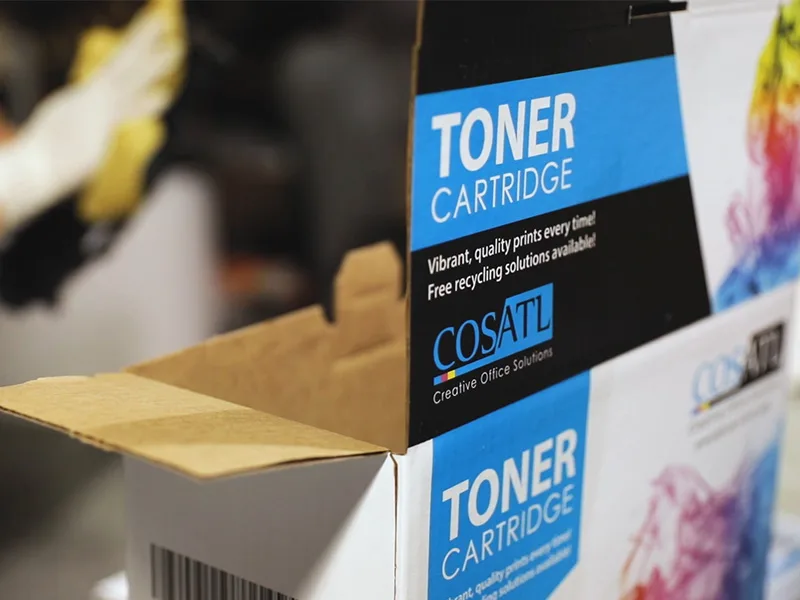
We manufacture toner cartridges right here in Marietta, GA. Try them out!
Learn More
Toner Cartridges
We manufacture toner cartridges right here in Marietta, GA. Try them out!
Learn More
 Equipment Repair
Our service department beats industry’s standards for equipment repair.
Learn More
Equipment Repair
Our service department beats industry’s standards for equipment repair.
Learn More